
How to Pin a Location on Google Maps (and Actually Keep It)
Pinning a location on Google Maps takes about one second, which is roughly one second less than the time it takes to lose the pin again. Touch and hold a spot on the map, a red pin drops, and a card slides up from the bottom with the address or the coordinates. That is the whole trick. The rest of this page is about the part nobody tells you: a dropped pin is temporary, and if you do not save it, it will be gone by the time you need it.
A dropped pin and a saved place are not the same thing
This is the distinction that causes most of the frustration, so it is worth thirty seconds up front.
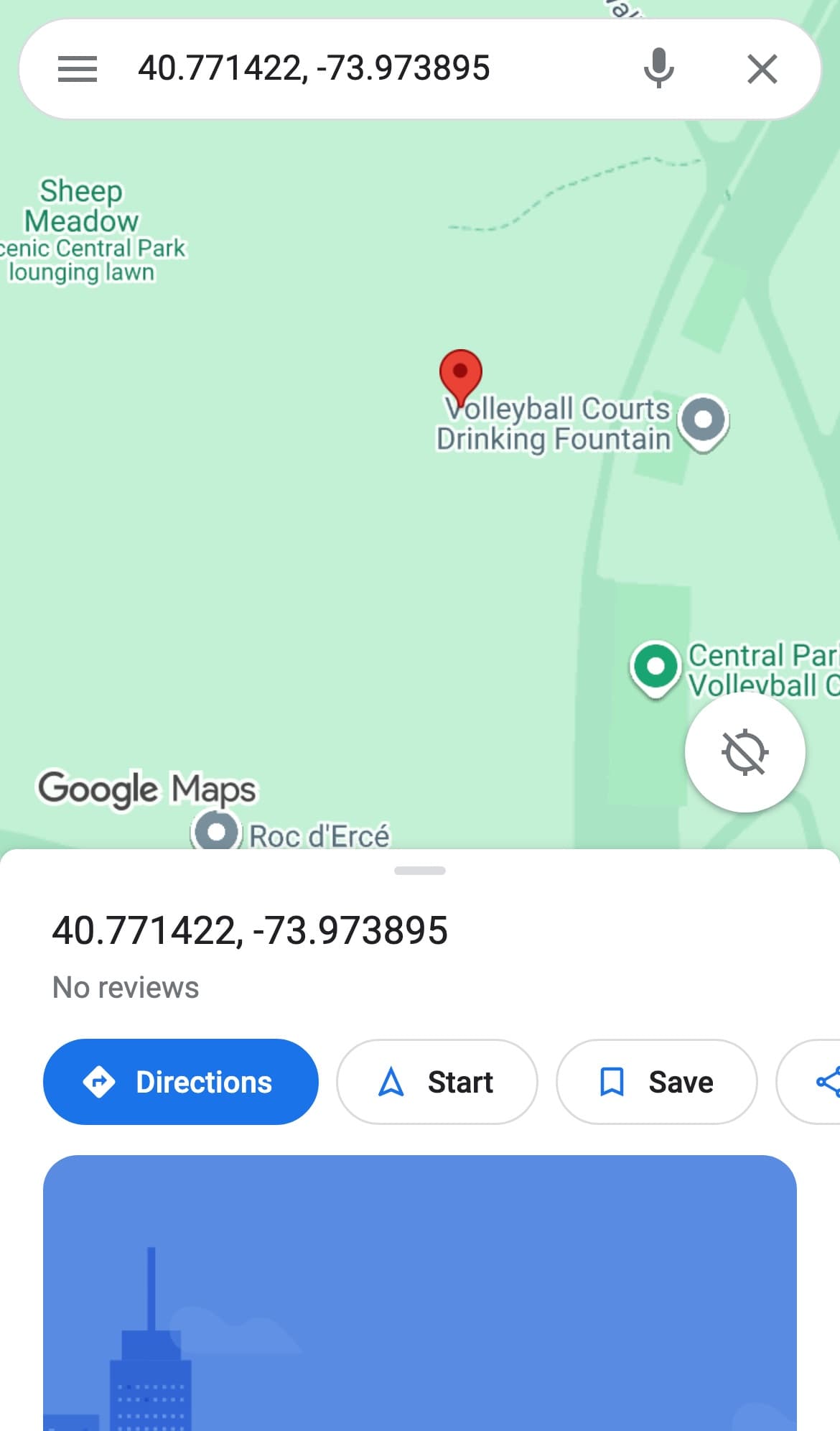
- A dropped pin is a temporary marker. You made it by holding your finger on the map. It shows an address or a pair of coordinates, it offers you directions, and it disappears the moment you search for something else. It is a sticky note, not a filing cabinet.
- A saved place is a dropped pin you kept, by tapping Save and putting it in a list. It survives closing the app, changing phones, and the following Tuesday.
Almost every complaint that starts "my pin disappeared" ends at that line. The pin did not disappear, it was never saved. It did exactly what a dropped pin does, which is the digital equivalent of writing an address on your hand and then washing up.
How to pin a location on Google Maps on iPhone and Android
The app works the same on both, which is unusual enough to be worth noting.
- Open Google Maps and find the spot you want.
- Zoom in further than feels necessary. A pin dropped at street level lands where you meant. A pin dropped from the height of a whole neighborhood lands somewhere in a parking lot two blocks away.
- Touch and hold for about a second. A red pin drops under your finger and a card slides up from the bottom of the screen.
- To adjust it, drag the map underneath the pin rather than fighting the pin itself.
- Tap Save on that card if you want to keep it. See the section on saving below, because this is the step people skip.
The card is doing more than showing an address. Directions, Start, Save and Share are all on it, and Share is the one that gets used most: it is how you send someone the exact door of a building rather than the street it sits on.
How to pin a location on a computer
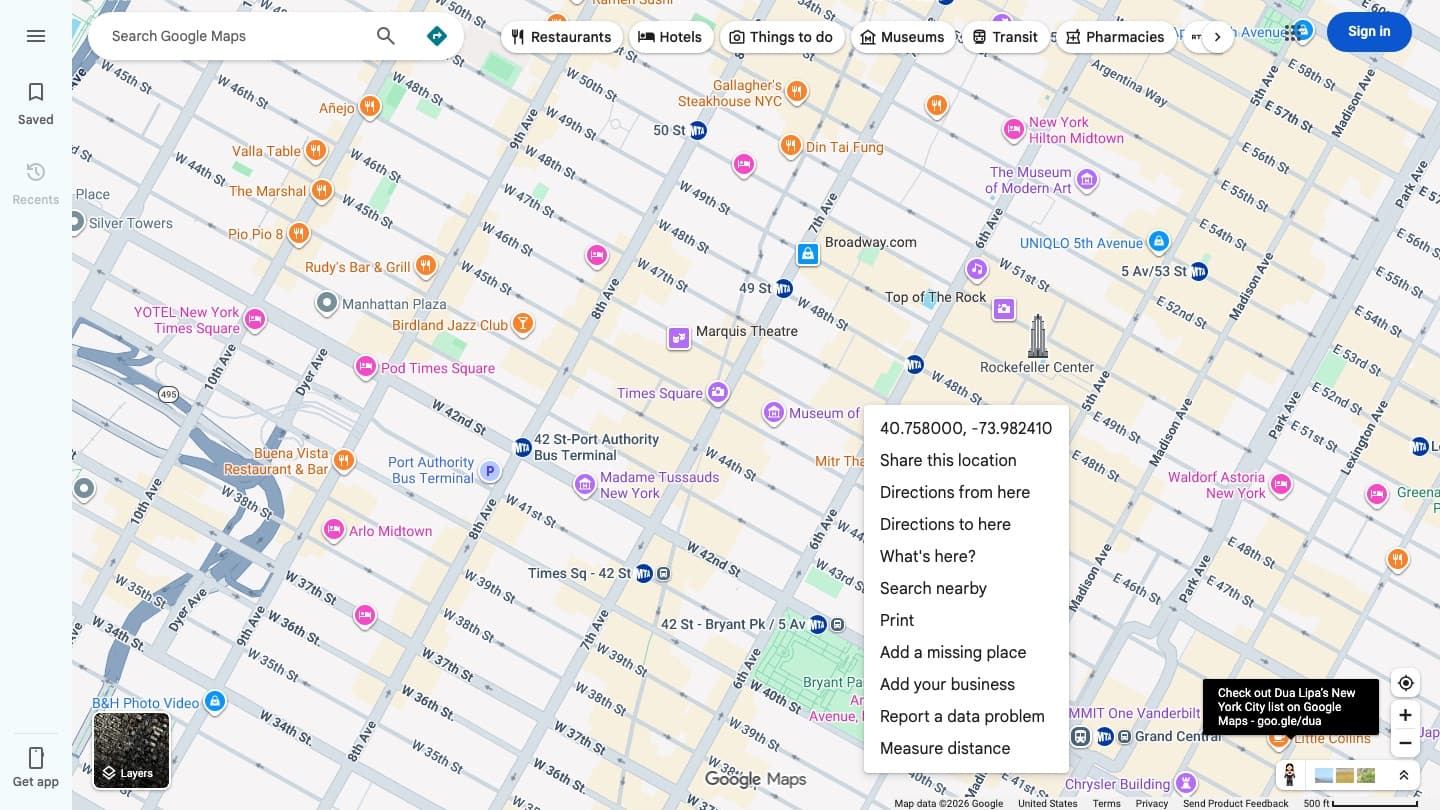
On a laptop there is no finger to hold down, so the gesture is a right-click. Right-click any point on the map and a menu opens with the latitude and longitude of that exact point on the first line.
That first line is the pin in its most portable form. Under it sit the options worth knowing: Share this location produces a link, What's here? opens the card for whatever Google thinks is at that point, and Measure distance is how you settle an argument about whether the hotel is really a ten minute walk from the station. It is usually not.
Pinning from a phone browser, with no app installed
Nobody writes this section, which is odd, because it is the situation people are actually in: a borrowed phone, a work phone with a locked app store, or a browser tab you do not want to leave.
Google Maps in a mobile browser handles a dropped pin fine. Touch and hold works, the pin drops, the card appears, and directions and Share all function. Every phone screenshot on this page was taken that way, in a browser, with no app involved.
Two things get in the way. Google will interrupt you at least once with a panel suggesting you upgrade to the app, and it puts an Open in the app button over the map, which you can ignore. More importantly, Save requires signing in. Tap Save while signed out and you get a Google sign-in page instead of your lists. So a browser is fine for finding and sending a spot, and useless for keeping one unless you log in.
Pinning an exact spot with coordinates
When there is no address, coordinates are the pin. A trailhead, a beach entrance, a gate on the wrong side of a very large building: all of these are easier to send as numbers.
Paste a pair like 40.758, -73.9855 into the Google Maps search box and it lands a pin on that point. Maps will show it back to you in degrees, minutes and seconds, which looks like the machine correcting your grammar, and means the same thing.
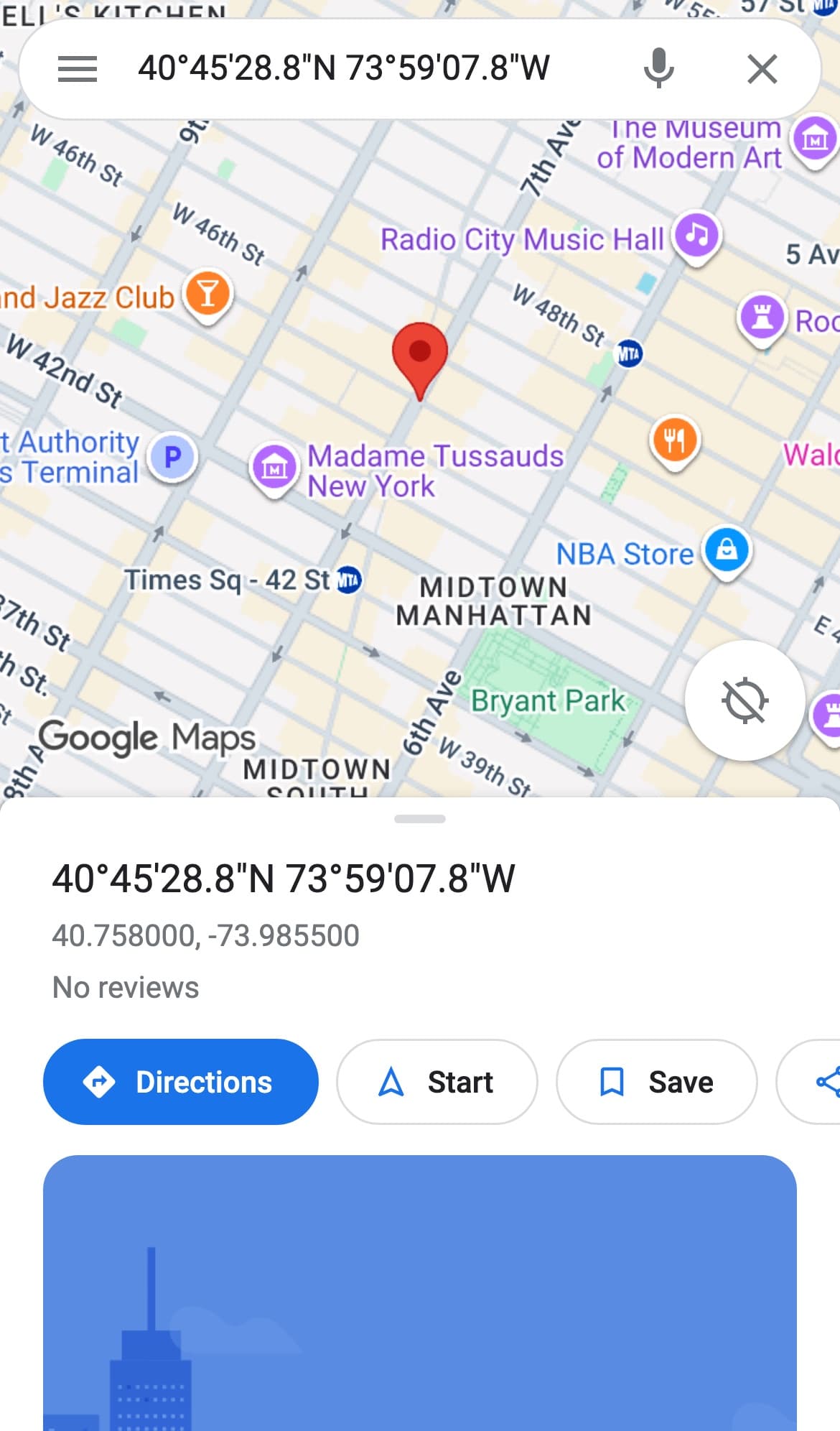
The formats Maps accepts are documented by Google's own help page on coordinates, and the short version is that decimal degrees are the least error-prone of them. Put the latitude first, keep the minus sign for west and south, and use a period rather than a comma as the decimal point.
There is also a shorter option. A Plus Code is a code like 87G8Q2MM+HH that behaves as an address for places that do not have one. Paste it into the search box and you get the same pin, with fewer digits to mistype into a group chat.
When Google decides you meant the drinking fountain
Here is the behavior that makes people think pinning is broken. If you touch and hold near anything Google already knows about, it does not give you your point. It gives you that thing.
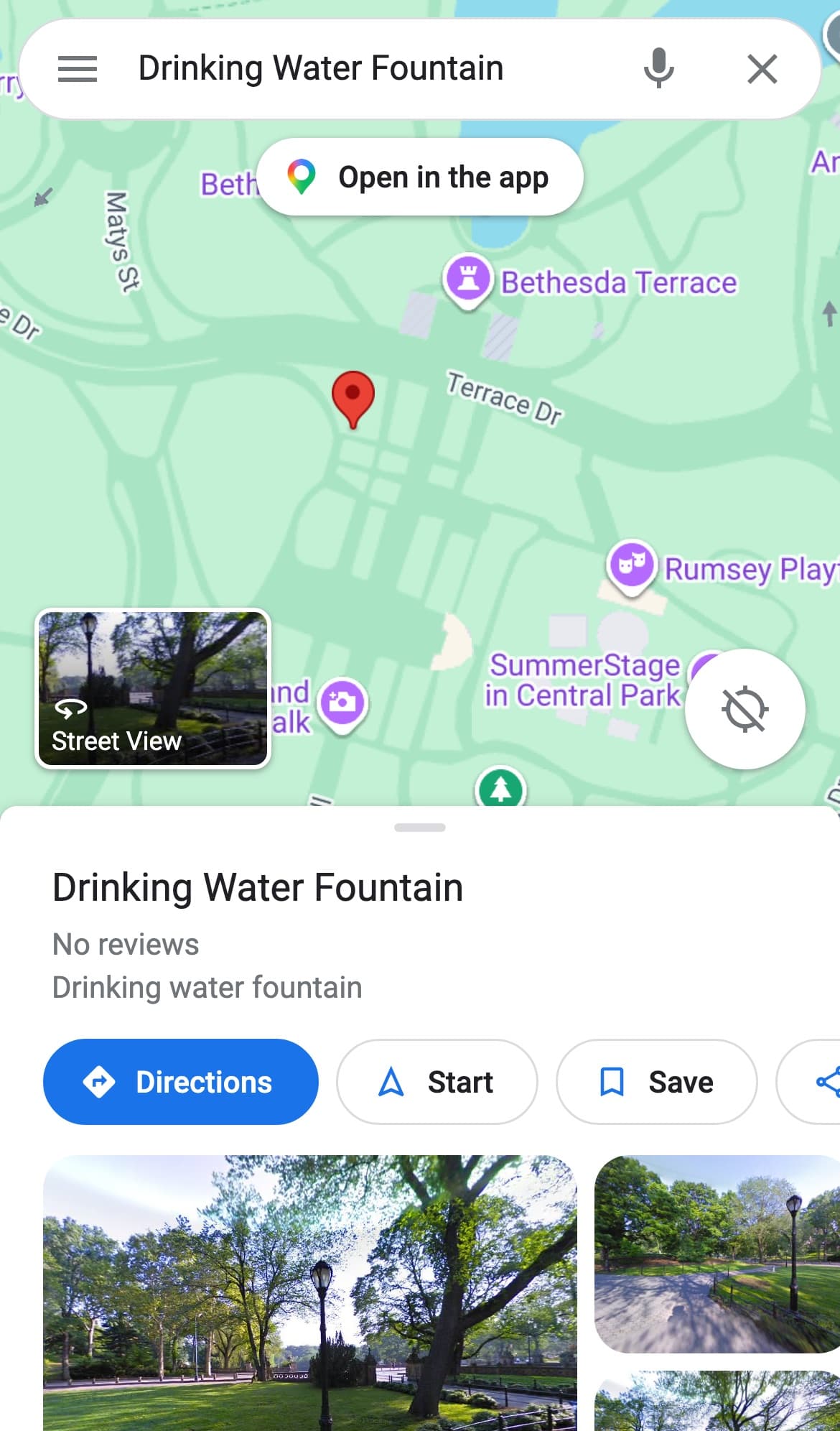
That screenshot is a genuine attempt to drop a plain pin on a path in Central Park. Google found a listed drinking fountain a few meters away, decided that was the more helpful answer, and gave me the fountain. It was not wrong, exactly. It was just answering a question I had not asked.
You can tell which one you got in one glance: a real dropped pin shows coordinates as its title, and a snapped pin shows a name. If you wanted the point and got a name, zoom in another two steps and try again a little further from the listing. The more you zoom, the more physical distance there is between your finger and whatever Google wants to suggest instead.
This also matters when you save. Save the fountain and your list now contains a fountain, which is a fine thing to own and not what you were aiming for.
Saving the pin so it is still there tomorrow
Tap Save on the pin card and Maps asks which list it belongs in. You get a few by default, Favorites and Want to go among them, plus the option to create a new one. Anything you save is filed under Saved in the app, and it syncs to any device signed in to the same Google account.
Three things worth knowing before you build a habit on this:
| The catch | What actually happens |
|---|---|
| You must be signed in | Save is the one action that will not work signed out. In a browser it sends you to a Google sign-in page instead of your lists. |
| The default lists fill up fast | Everything ends up in Want to go, sorted by nothing, and a year later it is 200 pins across nine countries. |
| A named list is worth the extra tap | One list per city, made at the moment of the first save, is the difference between a list you use and a list you scroll past. |
Lists are also the only version of a pin you can hand to someone else in bulk. A single shared pin is one place. A shared list is a plan.
Moving, renaming and getting rid of pins
A dropped pin you have not saved
Do nothing. Search for anything else, or close the tab, and it is gone. On a phone, tapping the back arrow or swiping the card away clears it immediately.
A saved place
Open Saved, find the list, and remove it there. Removing a place from a list does not remove the place from Google Maps, which surprises people. You are deleting your bookmark, not the restaurant.
A pin in the wrong spot
There is no dragging a saved pin to a new position. Delete it and drop a new one, zoomed in further than the first attempt. This is faster than it sounds and considerably faster than trying to nudge it.
The point at which pins stop working
Pinning scales badly, and it scales badly in a specific way. Up to about ten pins, a saved list is a great trip plan. Past forty, it is a screen of identical markers with names you no longer recognize, and you end up back in search, which is where you started.
The fix is not more pins. It is deciding what goes in before it goes in: one list per city, one purpose per list, and a rule that a place only gets saved if you would actually walk twenty minutes for it. That last rule removes about half of what most people save.
It is also, for the record, the entire job we do here. A hand-checked list of New York restaurants is 90 pins that someone else already argued about, which is 90 pins you do not have to drop one at a time on a phone at an airport gate.
So: hold your finger down, zoom in more than you think you need to, check whether the card says a name or a number, and save it before you look away. That is pinning. The hard part was never the gesture, it was remembering that a sticky note is not a filing cabinet.
Going somewhere else instead? There are hand-checked lists for every city we cover, built the same way, and a longer read on what to eat in Tokyo if that is the trip.
Common questions
- How do you pin a location on Google Maps?
- On a phone, open Google Maps, zoom in on the spot, then touch and hold it for about a second. A red pin drops and a card slides up from the bottom with the address or the coordinates. On a computer, right-click the point instead: the menu that opens has the latitude and longitude of that exact spot on its first line. On both, the pin is temporary until you tap Save.
- Why does my dropped pin keep disappearing?
- Because a dropped pin is temporary by design. It is cleared as soon as you search for something else, tap back, or reload the page. Nothing has gone wrong and nothing was deleted: the pin was never saved. Tap Save on the pin card and choose a list, and it stays until you remove it.
- What is the difference between a dropped pin and a saved place?
- A dropped pin is a marker you made by holding your finger on the map. It shows an address or coordinates and it vanishes when you move on. A saved place is a dropped pin you kept by tapping Save and filing it in a list. Saved places sync to every device signed in to the same Google account; dropped pins do not sync anywhere.
- How do you pin an exact location with coordinates?
- Paste the coordinates into the Google Maps search box, latitude first, in the form 40.758, -73.9855. Maps drops a pin on that exact point and shows the same position back in degrees, minutes and seconds. Keep the minus sign for west and south, and use a period as the decimal point rather than a comma.
- Can you pin a location on Google Maps without the app?
- Yes. Google Maps in a mobile browser supports touch and hold, so the pin drops and the card with directions and Share works normally. The one thing that does not work signed out is Save: tapping it sends you to a Google sign-in page instead of your lists. So a browser is fine for finding and sending a spot, and no use for keeping one unless you log in.
- Why did Google Maps pin a nearby business instead of the spot I picked?
- Long-pressing near a place Google already lists snaps the pin to that listing rather than to your point. You can tell instantly which one you got: a true dropped pin is titled with coordinates, a snapped pin is titled with a name. Zoom in another two steps and press further from the listing to get your own point back.
- How do you delete a pin on Google Maps?
- An unsaved dropped pin needs no deleting. Search for something else or close the tab and it is gone. A saved place is removed from Saved, inside the list you filed it in. Removing it there deletes your bookmark, not the place itself, and there is no way to drag a saved pin to a new position: delete it and drop a fresh one.
- How many places can you save in a Google Maps list?
- More than you will usefully read. The practical limit arrives long before any technical one: past roughly forty pins a list becomes a screen of identical markers with names you no longer recognize, and you go back to searching. One list per city, with a rule about what earns a place in it, beats one enormous list of everywhere.